
Switching Between Tribes
Your YouTribe profile is not tied to just one community. It is your control center for every tribe you create and every tribe you join.
On your profile page, you’ll see two core sections:
- Tribes Created – All the tribes you own and run
- Tribes Joined – All the tribes you’re a member of
Each tribe here is its own business, brand, and ecosystem.
What “Switching Tribes” Actually Means
When you click on any tribe listed under Tribes Created, you are instantly taken inside that tribe’s admin space.
From there, you can:
- Manage members
- Publish posts, videos, courses, digital products, events, and articles
- Adjust pricing plans and access rules
- Respond to DMs
- Track your growth
- Run launches, programs, and sales
You are not just “viewing” a tribe. You are stepping into an entirely different business dashboard.
Why This Matters
This setup lets you run multiple creator businesses from one login.
Examples:
- One tribe for your public community
- One tribe for paid programs
- One tribe for corporate training
- One tribe for experiments or beta groups
- One tribe for a completely different niche
All under the same account.
How to Switch Tribes
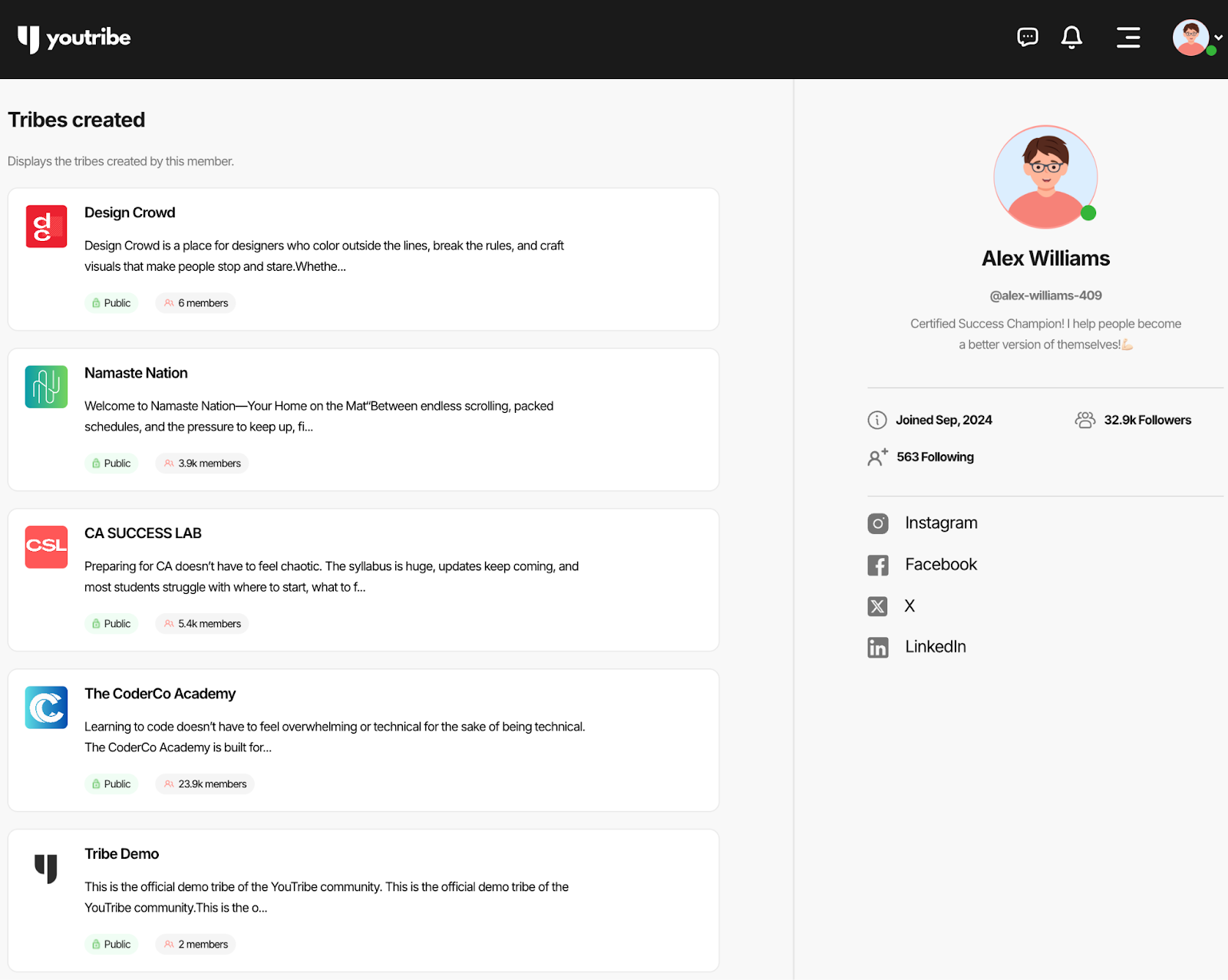
- Go to your Profile page
- Under Tribes Created, find the tribe you want to work on
- Click on it
- You’re instantly inside that tribe’s workspace